Cora
August 31, 2024Hi 👋
To be honest, I don’t really know how to start this post, mostly because I’ve put off writing it for almost a year now.
According to the commit history, I made the first commit on the 17. September 2023. And besides some maintenance commits, I haven’t touched Cora since 3. October 2023.

Let’s go back, to before I even started working on Cora.
3D Modeling
When I got my first 3D printer, I decided to improve my 3D modeling skills, to be able to design and print custom parts.
In the early days, I did some modeling using
Blender,
but I quickly moved to
FreeCAD,
as Blender really isn’t suited for
CAD work.
Honestly, I never properly learned to use FreeCAD (especially keybindings),
as I find its interface to be too cluttered for me to concentrate properly
(I have the same issue with VSCode and similar software).
After looking for a replacement software online,
I eventually settled on
Solvespace,
which might look old and outdated to you,
but I love the interface 💘 (and it has way more features than I need).
During the time I used it, I designed a model chair,
a replacement trimmer blade, and
a simple desk speaker enclosure.
Thingiverse
If you are in the 3D printing community,
or interested in 3D models in general,
you have probably heard of Thingiverse.
At first, I used it to get my hands on 3D models,
but when I couldn’t find the models I wanted,
I decided that I would publish my own.
But I’m not here to tell you about my Thingiverse models, instead let me tell you about what I rediscovered through Thingiverse.
OpenSCAD
OpenSCAD describes itself as
The Programmers Solid 3D CAD Modeller
and that is essentially it.
You basically design your model as code.
I had heard of OpenSCAD before joining Thingiverse,
and had used it for a couple of models, just to fool around.
During this time, I already grew to love it more
than both of the other CAD programs, for one simple reason: variables.
Variables
Because everything is code, you can simply create a variable, assign a value to it, and use it to transform your model, allowing you to perform slight modifications to your model by changing the variable.
For example, you could design your model to use a tolerance variable, and whenever you change the tolerance variable, the model updates itself, making small adjustments much easier.
This can also be useful, when designing models to be cut on a laser printer.
Simply create a thickness variable and use it throughout your model,
making switching between different plywood thicknesses
as easy as changing the variable.
As you can see, variables are powerful.
And they become even more powerful when you use them properly.
This is actually something I discovered through Thingiverse.
More specifically: their OpenSCAD integration.
Their integration allows you to edit 3D models that provide a .scad file,
directly in your browser, by adjusting the variables.
This is achieved by using OpenSCAD’s Customizer syntax, which can also be used in the OpenSCAD desktop app.
To be honest, this got me hooked - the fact that I can create a 3D model, and make it possible for other people to easily adjust it to their liking just won’t cease to amaze me.
Moving from Thingiverse
Ever since I started designing 3D models using OpenSCAD, I knew that I wanted it to be as easy as possible, for others, to customize the models. And the Thingiverse Customizer just fits that really well, as it was integrated into the platform.
However, over time, I grew dissatisfied with the Thingiverse UI, with some parts just outright not working, they also didn’t have a dark mode back then 😝.
Additionally, you could only properly use the Customizer with an account, and I hate functionality depending on a proprietary platform.
The most popular Thinigverse alternative, that focuses on free models is prusa’s printables, and after uploading a demo model, I instantly fell in love with the workflow, UI, and color scheme. There was only one problem: they do not have an OpenSCAD Customizer, and arguably, having to install a desktop app just to customize a 3D model, is a roadblock especially to newcomers.
So I decided on the only reasonable option: making my own.
Introducing Cora
When I started working on Cora, I had a couple of requirements in mind:
- support the same configuration options as the Thingiverse Customizer
- use a simple user interface
- load models from URLs (so I don’t have to host them myself)
- don’t render the model on a server
I don’t really have a problem with hosting a server, but I did not want to risk it. There only has to be one vulnerability in OpenSCAD, Docker, or a VM for someone to be able to attack my server. Instead, I went looking for alternative OpenSCAD runtimes, until I found somewhat official WebAssembly builds.
I’ll spare you the details (also, I can’t remember them),
but I eventually settled on the 2022.03.20 wasm build,
as it was the most reliable version I tested.
Additionally, I decided to use simplecss, to save myself time on theming. As I was already planning to use html5 elements, to make the page more accessible, this fit right in.
And that’s how Cora, my web-based OpenSCAD Customizer, was born.
Let’s take a look around 😍
To make it easier for others to use, I host a version over on cora.ccw.icu.
When you open Cora, you are greeted by the landing page, where you can paste a file URL, pick a local file or read about Cora.
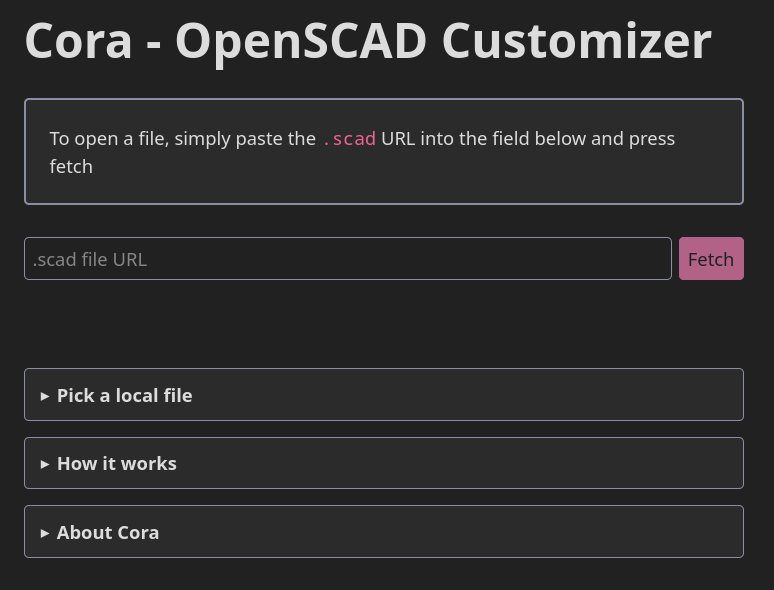
Note: When using external URLs, you can copy the editor URL and use it to share the source model, to automatically open it in Cora. You can try this by following this link, to my pyramid planter.
You first model
After pasting a URL or loading a local file, you will be shown the Edit tab.
The Edit tab consists of the file description (the first comment in the file) and details elements for every customizable section of the model. This is where you can change the values of the variables.
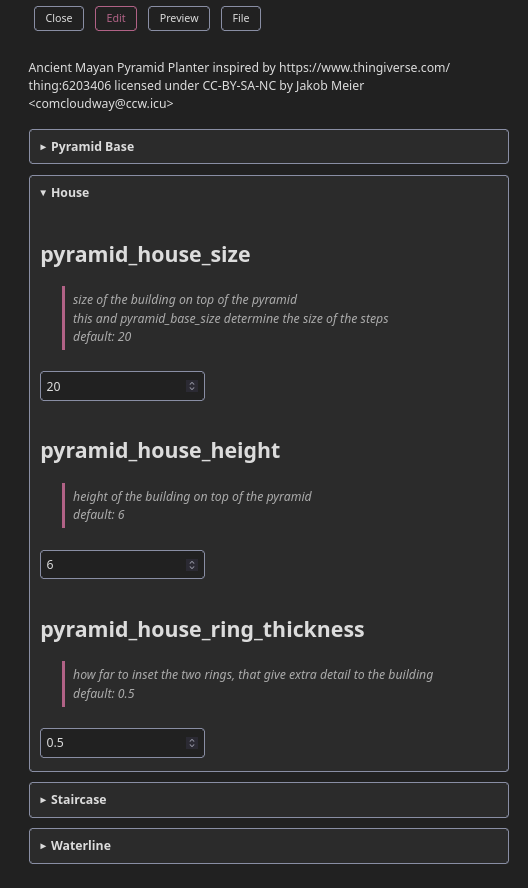
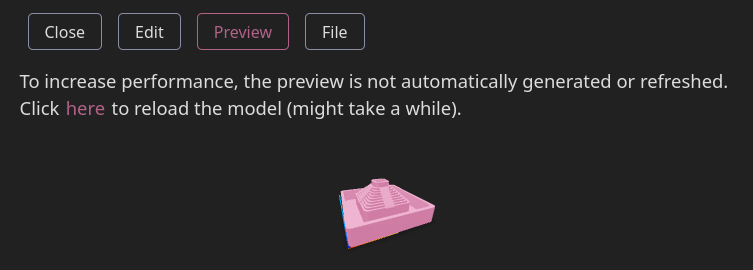
If you want, you can head to the Preview tab and generate a preview.
Because the stl generation process requires a lot of resources,
this does not happen automatically,
instead you have to press a button to start it.
After pressing the button, Cora will use the OpenSCAD WebAssembly build,
I mentioned earlier, to generate a stl file,
which will then be displayed in a preview window.
The process will probably take a while - so grab some tea 🧋.
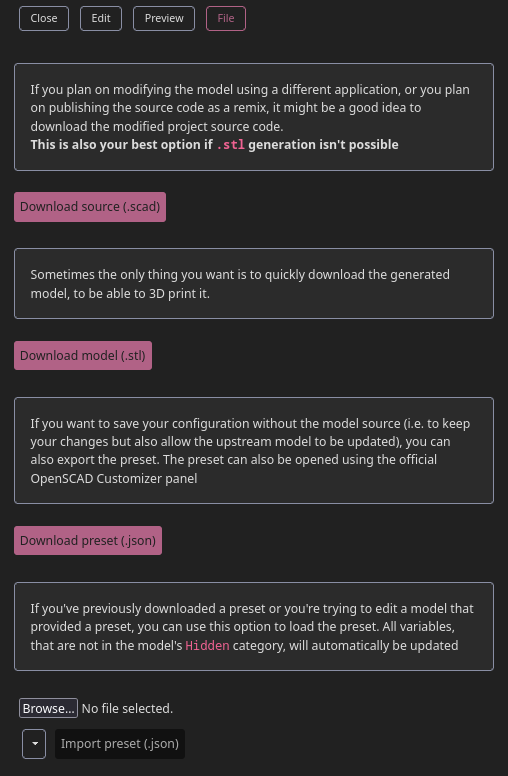
Once you are happy with your modified model, you can open the File tab.
Here, you can download the modified .scad file,
this is especially useful,
if you plan on publishing the model as a remix online.
Additionally, it also gives you the option to import or export a JSON preset,
which can be used in the customizer panel of the OpenSCAD desktop app.
Most importantly, you can download the .stl file.
This also uses the OpenSCAD WebAssembly version, and will probably take a while, so finish that cup of tea, or grab a new one.
And that is it.
If you want to view a list of my models, which can be customized using Cora,
head over to my printables profile.
Unfortunately, not every OpenSCAD model I make can be customized this way,
because of some limitations of the OpenSCAD WebAssembly version
and available memory in the browser.
But it is better than nothing, and using the desktop app
is probably a better idea for larger models anyways.
Source
If you’d rather view the technical side of this, head over to the codeberg repo.