It's Canvas: Introduction
January 27, 2025Welcome to It’s Canvas, a series where I’ll explore different techniques that
can be used to transfer images to canvas.
I think there is beauty in making things yourself, which can be used as decoration
or as a gift for someone else.
This series is split into multiple parts.
This first post is meant as a sort of introduction, showing you how to prepare the
photograph for printing.
The next three parts will focus on one technique each.
After that, we’ll look at the results and discuss possible post-processing steps.
Overview
As I mentioned above, this series will touch on three different techniques, which
we will explore over the coming weeks.
You can see the same picture transferred to canvas using the techniques below.
To learn how they were made, you have to wait for the upcoming parts.

Selecting a Canvas & Print size
How about, starting with the basics, the steps that are the same for every technique. That way, if you only want to know about a specific technique, you can jump to it directly. It also means I don’t have to explain this every time.
First of all, you will obviously need some sort of canvas.
I get mine at a local arts & crafts store, but a simple search for
art blank canvas should also give you good results.
Additionally, all of them require a medium on which you have to print the image.
The paper type will be discussed in the upcoming parts.
However I will be using DIN A4-sized paper for all of them.
Given that you have to print on the paper, you’ll also need a printer.
The type of printer depends on the technique used and will also be discussed
in the upcoming parts.
Because we can only print 21 x 29.7cm on A4, this limits the canvas size
you can print on.
I normally go with 15 x 15 x 1.5 cm, as I like to wrap the image around the
edges to give it that polished look.
To figure out the image print size, I take the width of the canvas and add twice
the thickness to it. Then I add about 1 cm on every side just to give me more space
to work with. (More space will make aligning the image easier later on, as it is
not as obvious if we don’t hit the center spot on)
Basically, given a canvas the with the size: a x b x c, you can determine the
width of the image using: a + 2*c + 2 and the height: b + 2*c + 2.
(The size is obviously the same for a square canvas.)
For my 15 x 15 x 1.5 cm canvas, I’ll print the image set to
20 x 20 cm.
Getting ready for printing
Now that we got the non-computery stuff out of the way, we can start
preparing the image we want to print.
I’d recommend using GIMP, a free and open-source cross-platform image
editor.
I start by opening GIMP and drag-and-dropping the image I want to print.
Afterwards, I select the rectangle select tool and select a roughly square area.
Once selected, I ensure the selection is actually square using the toolbox.
You can move around the selection by pressing inside the selection and
moving the mouse. This allows you to visualize different framing options.
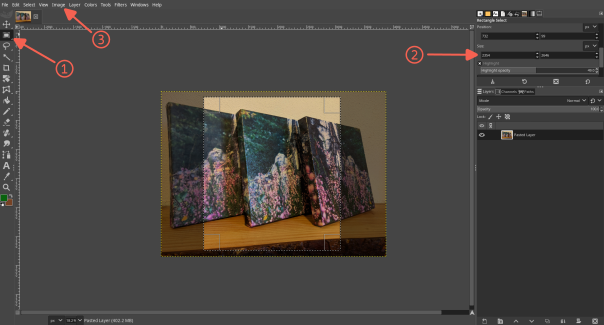
Once I’m happy with the selection, I crop the image to the selection, by selecting
Image > Crop to Selection from the top bar.
This should leave you with only the selected area of the image.
Lastly, change the print size by selecting Image > Print Size and input the
values calculated in the previous step.
Note: You could also export the square image into a different program, like
Inkscape, and scale the image that way. This allows you to add
additional design elements in the remaining 9 cm at the bottom of the page
if you don’t want to waste it.
You are all set now.
But before you start printing all of your designs, I’d recommend waiting for
the upcoming parts, as some techniques may require different paper types,
print settings, or even specific kinds of printers.
(You can access the gimp print dialog from File > Print or using Ctrl+P)
More information will be revealed in future parts.
I can’t promise anything, but I’ll try to release the next parts weekly.
You can follow me on the Fediverse or subscribe to the
blog RSS feed, so that you don’t miss any updates.
See you around ❤