It's Canvas (S2): Direct to Canvas
November 18, 2025Hello, y’all *waves*.
It’s Canvas is back - you didn’t expect that, did you?
Well, I didn’t either, but after concluding Season 1, I just couldn’t stop trying stuff,
and I’m back to show you a couple more really cool techniques.
If you want to catch up on all the episodes from season 1, you can find them in the Series Overview
or start with the It’s Canvas Introduction.
While planning this series, I went back and forth quite a bit on the episode order.
At first, I wanted this part to be the final episode,
but as you can tell, I decided against that - to be honest, I just couldn’t wait.
Something that hadn’t occurred to me before is that a lot of industrially made canvases are just inkjet printed. I figured that my inkjet printer should thus be able to print on canvas sheets.
🔴 Caution
I’m not responsible for any damage done to your printer by loading unknown materials into it.
Materials
- A4 canvas sheet
- Inkjet printer
- Canvas frame (wooden)
- Staple gun & staples
- Acrylic clearcoat spray paint
Finding usable Canvas Sheets
As you can probably guess, most consumer printers aren’t really made to print on canvas.
And most consumers probably don’t ever think about printing on canvas either.
When trying to find suited print materials, you’ll find that there are pretty much no A4 canvas sheets that are marketed as being made for Inkjet printers.
Instead, you probably want to look for A4 canvas sheets,
advertised as being for acrylic painting.
I tested four different types and found that polyester-cotton blends seem to work the best.
I did notice that the way the surface is primed makes a difference,
because it controls the way the ink is absorbed.
Sadly, none of the sheets mentioned the way they were primed on the packaging.
You’ll also have to look out for paper weight.
A lot of these canvas sheets are made to be painted on and thus tend to be thicker than the paper weight supported by consumer printers.
After checking some of the blends of industrial polycotton canvas rolls on eBay,
I’m fairly confident, that you could probably buy one of them and cut them into chunks.
You would be wasting a lot of money if they don’t end up working with your printer, though.
If you are using a new type of paper for the first time,
I would recommend going slowly before printing larger images.
It’s better to ruin one sheet than it is to ruin your printer.
I like to start by printing an empty white page, just to make sure the printer can properly spool the material.
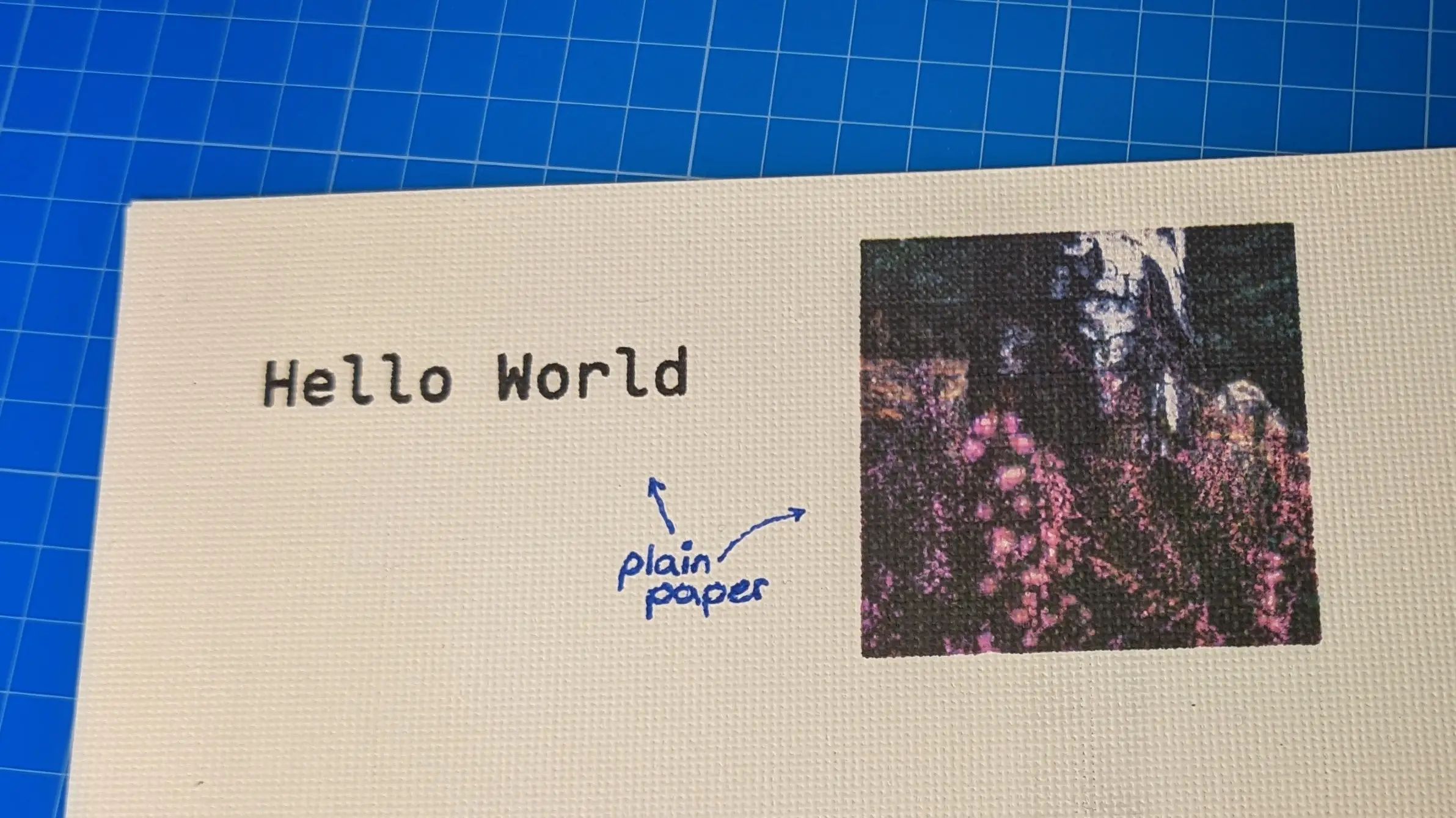
If the material successfully makes it through the printer, I print some black text (10-12 pt),
in one of the corners.
This provides me with a means of measuring the sharpness and ink absorption.
Next up on my list is printing a small photo (around 5 by 5 cm).
If I notice the ink smearing when printing text, I usually make the image slightly transparent (around 80%)
to prevent the inside of my printer from getting dirty.
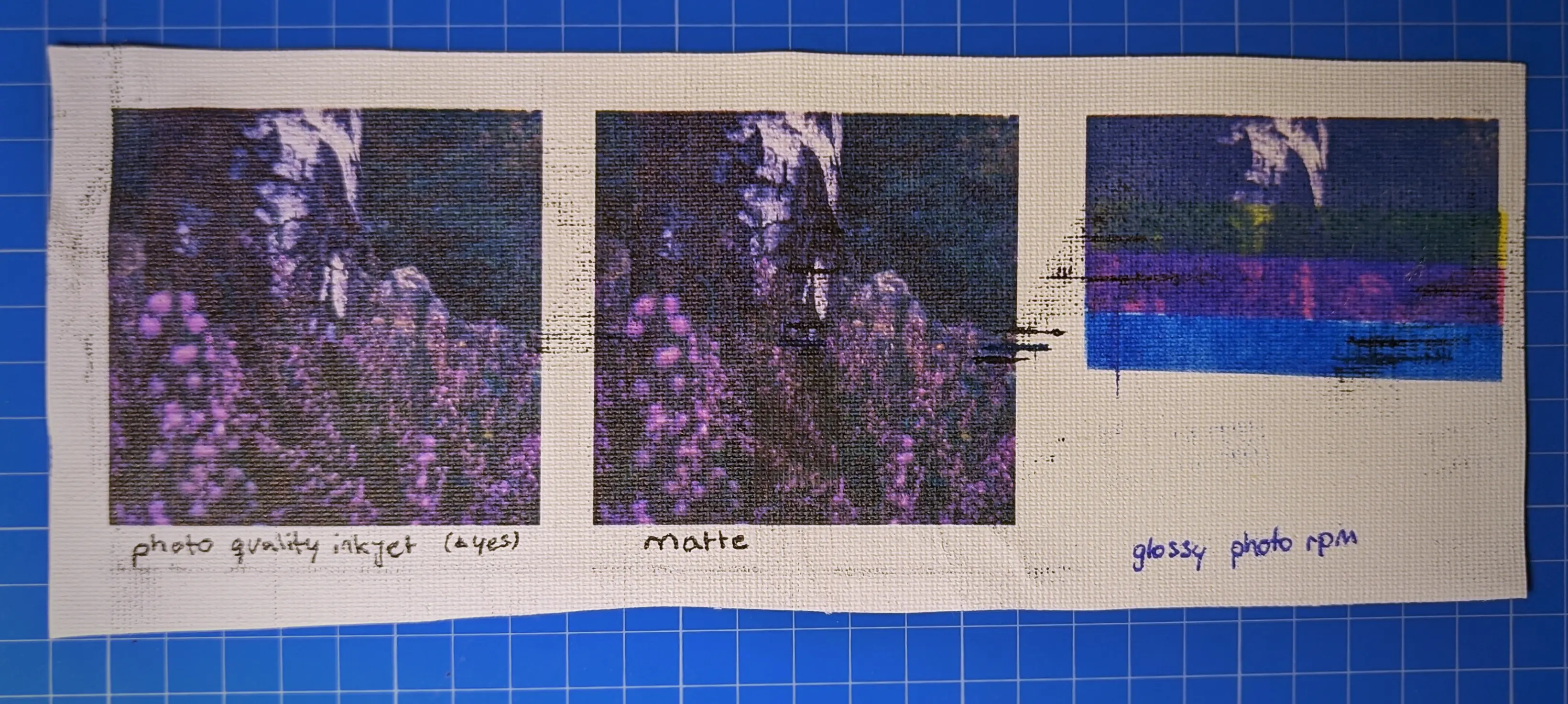
You might also want to experiment with different paper-type settings to see which settings result in the best image.
The exact print settings depend heavily on your printer,
but I think that with some experimentation, you should be able to get decent results.
Luckily, you can move around the test images on your sheet to reduce wasting material.
The A4 Clairefontaine Polycotton White Canvas sheets ended up working perfectly with my Epson ET-2851 and have pretty decent color and contrast when using Matte paper settings.
Printing
With your print settings figured out, it is finally time to start printing.
Similar to all the other times we printed our designs on transfer paper,
we’ll start by measuring the frame so we can properly size the print.
Given that the canvas has to span the entire frame, you want the print to be slightly larger than the sum of the width and two times the thickness.
Additionally, you’ll want to add about 5-10 mm of margin on every side to make fixing the canvas sheet onto the frame easier.
If your canvas is 15 cm wide and 2 cm thick, you should make the design 15cm + 2 * 2cm = 19cm wide.
That means you’ll need a minimal page size of 20 cm if you account for a 5 mm margin on either side.
I showed off a very basic workflow to achieve this using GIMP in the first-ever It’s Canvas episode.
These days, I prefer importing the image into Inkscape and clipping it using a rectangle.
Inkscape also allows me to add additional design elements to the empty areas on the bottom of the sheet (when printing smaller designs),
reducing wasted material.
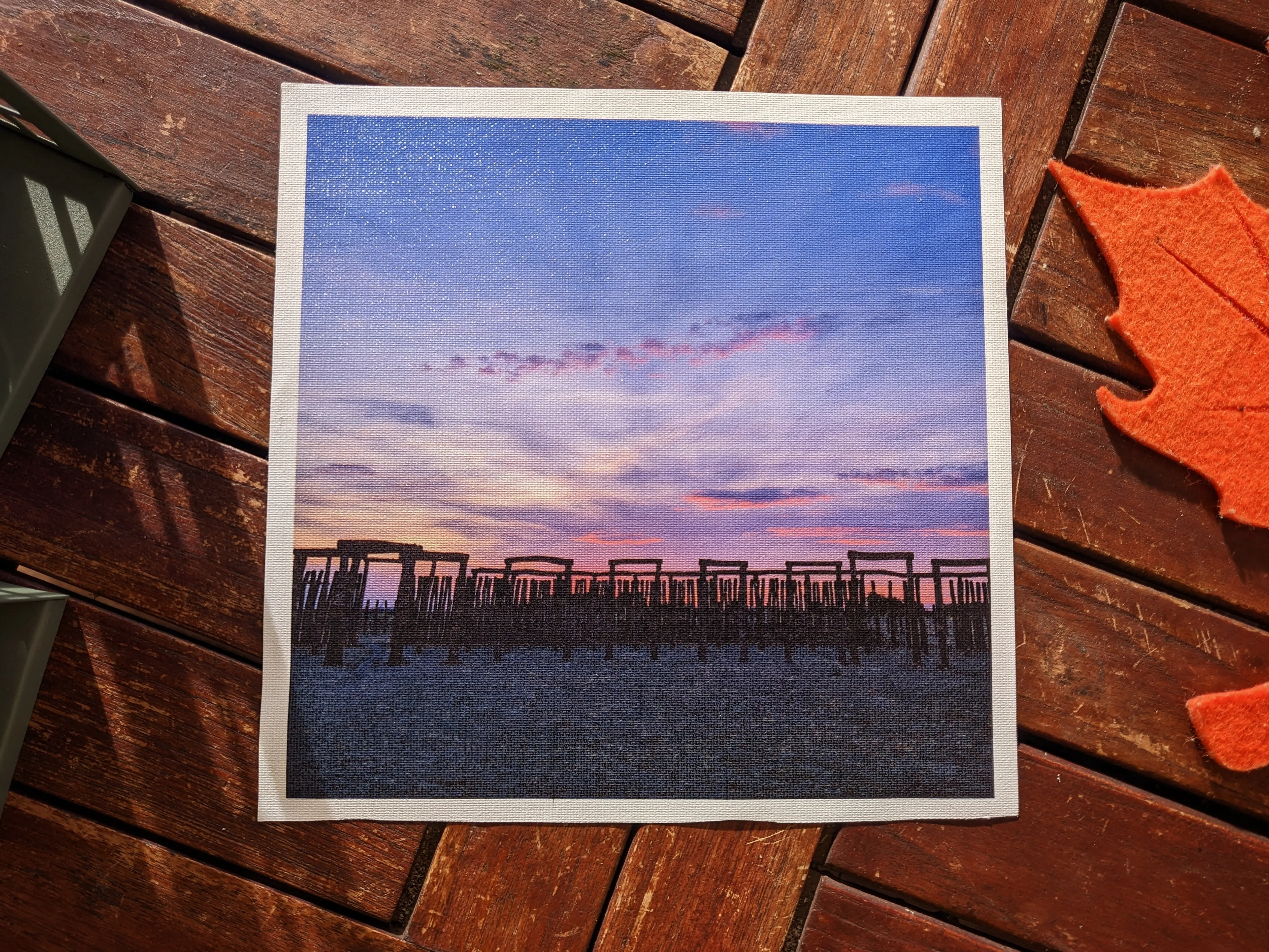
After finishing the layout, you can properly print the design.
To prevent smearing the ink when handling the canvas, you should let it dry for a couple of minutes.
Once dry enough, you can cut out the graphic, leaving about 5-10 mm on all sides.
To further protect the canvas and ink, you should also apply an even spray acrylic topcoat. I prefer spraying it at a roughly 45-degree angle from a 20 cm distance before rotating the canvas 90 degrees and repeating the process from all four sides.
Framing
While you wait for the acrylic topcoat to dry,
you can start preparing your workspace:
place a cardboard sheet on your work surface, to prevent the surface from damaging the canvas.
You’ll also want to get your staple gun loaded and ready.
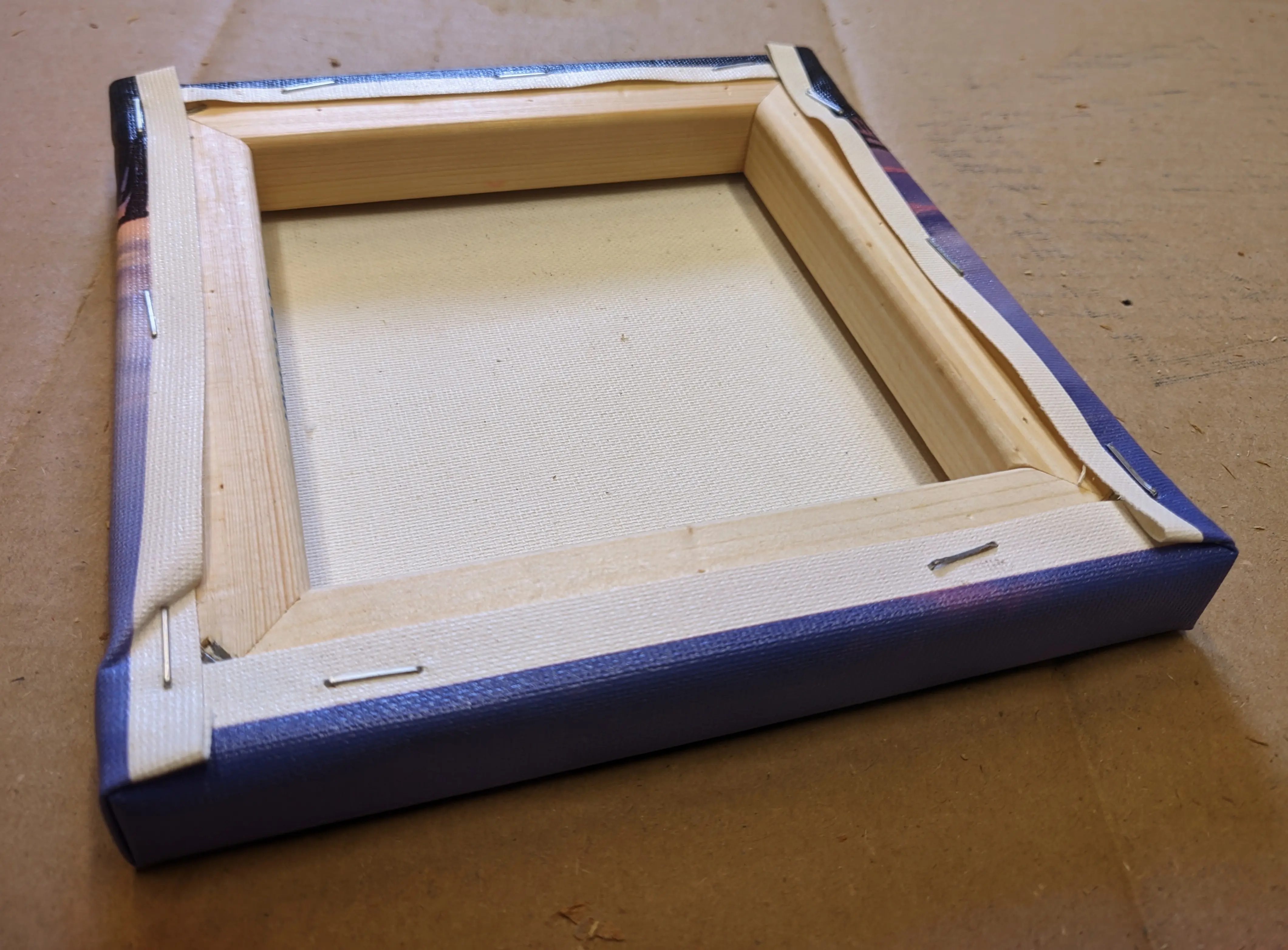
To wrap the canvas sheet, you’ll want to place it facing down on the cardboard sheet,
with the back facing up, and place the canvas frame on top.
Now is the perfect time to make sure it is centered and that everything wraps around the frame properly.
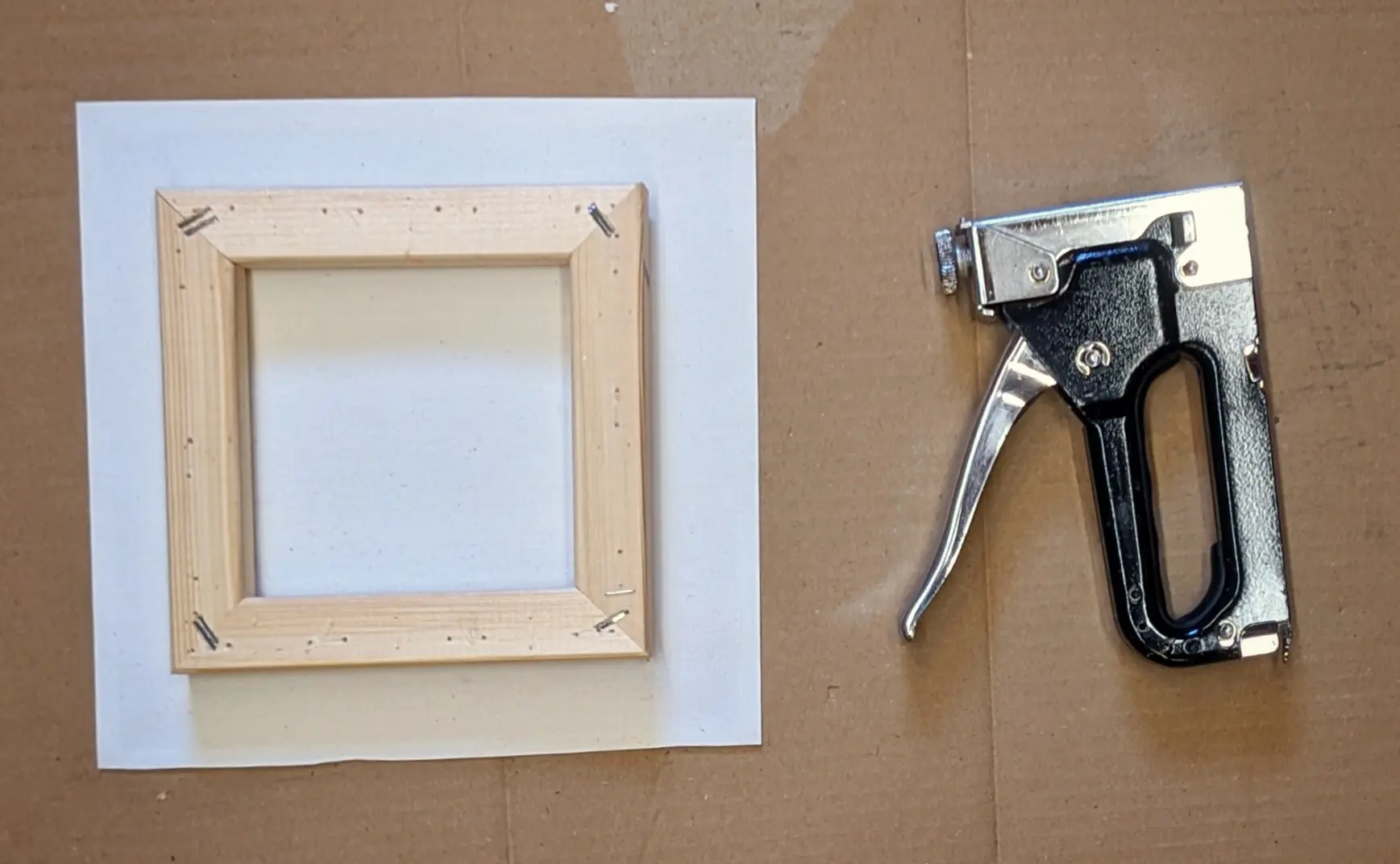
Instead of folding all sides over at once, we’ll slowly work our way around all four sides.
It doesn’t really matter on which side you start, but you might want to consider that the sides adjacent to the starting side
might bulge outwards on the corners.
Fold over the canvas fabric on your starting side, making sure the image is actually parallel to the frame
and staple it in place by adding three staples, one in the middle and two towards the frame corners.
Make sure that the canvas is stretched and doesn’t form bulges.
With one side done, you can move on to the opposite side,
stretching the fabric over the back, pinning it in place in the middle, and stretching it towards the corners.
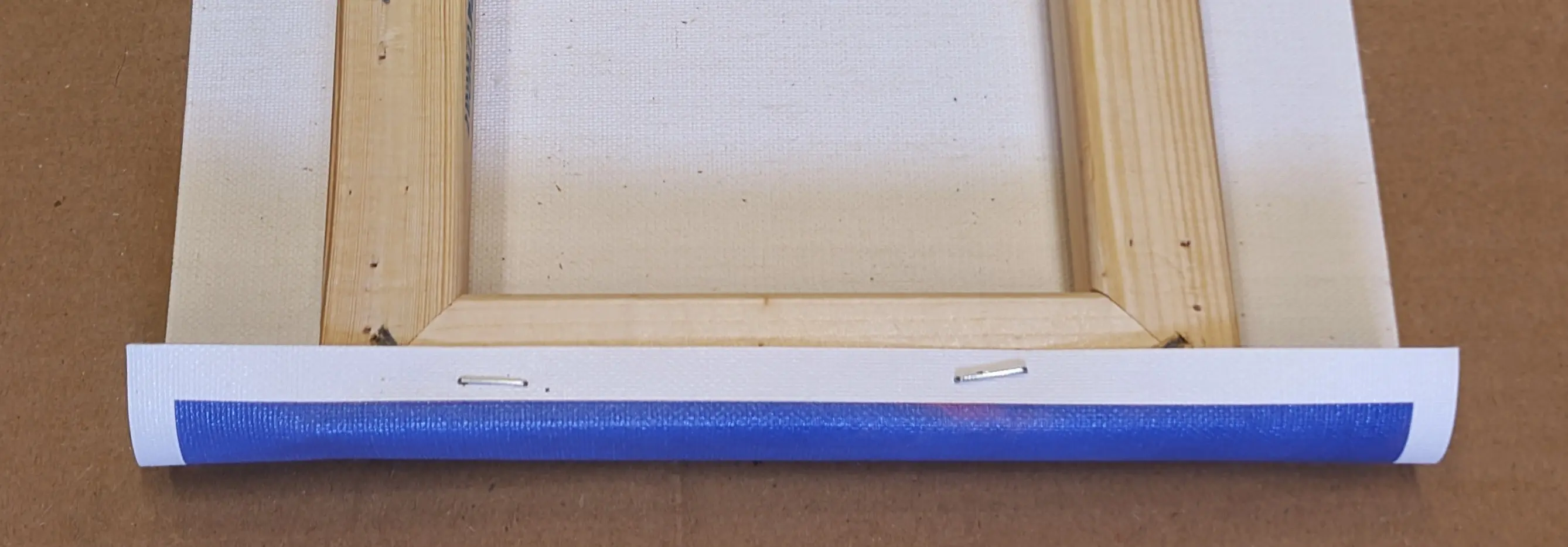
To reduce the amount of fabric, you can cut off a triangle shape from the back corner of the canvas to roughly halfway of the canvas thickness.
This should make folding the corners a lot easier.
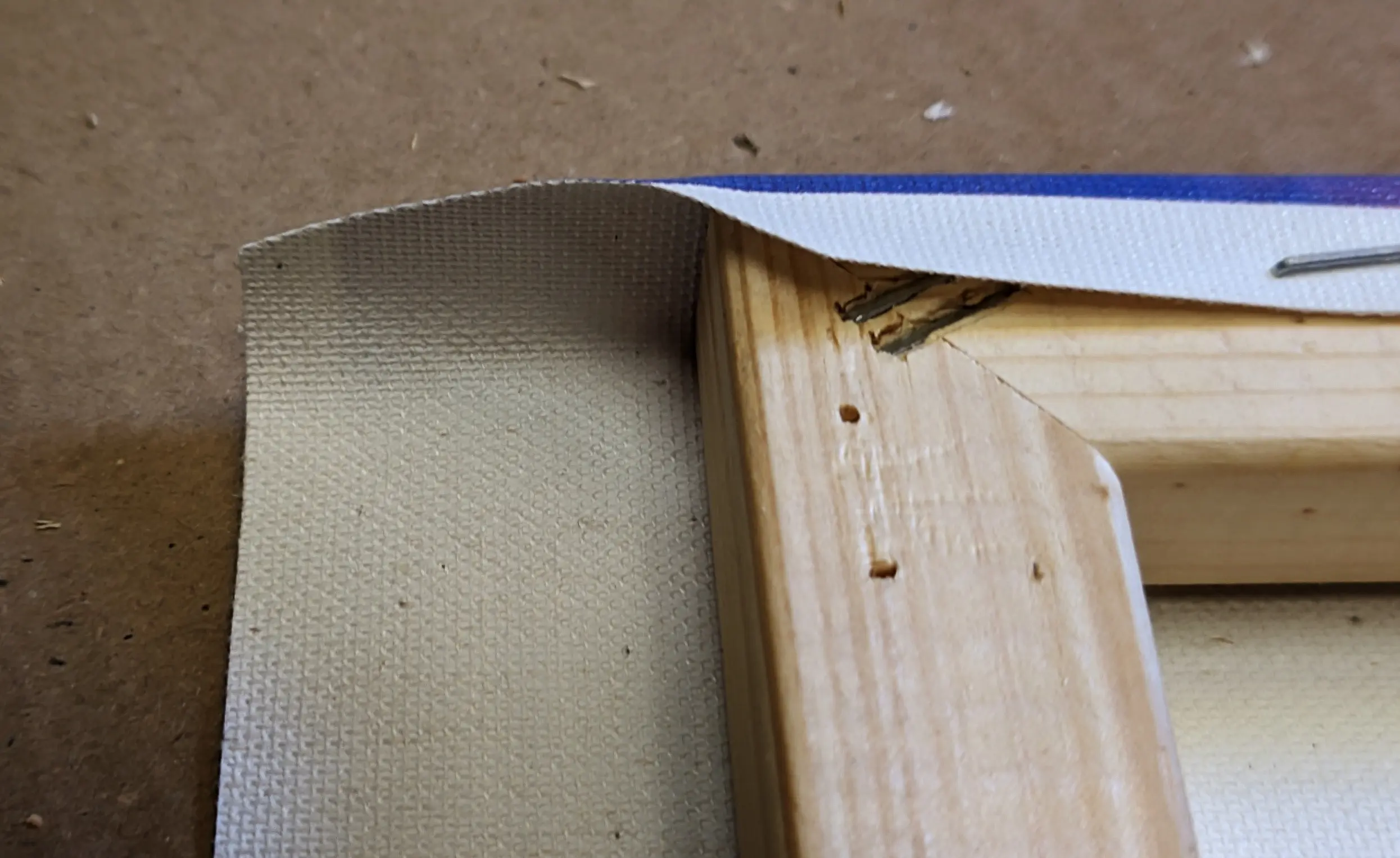
Now fold the remaining fabric inward and wrap the excess material over to the back, securing it in place using more staples.
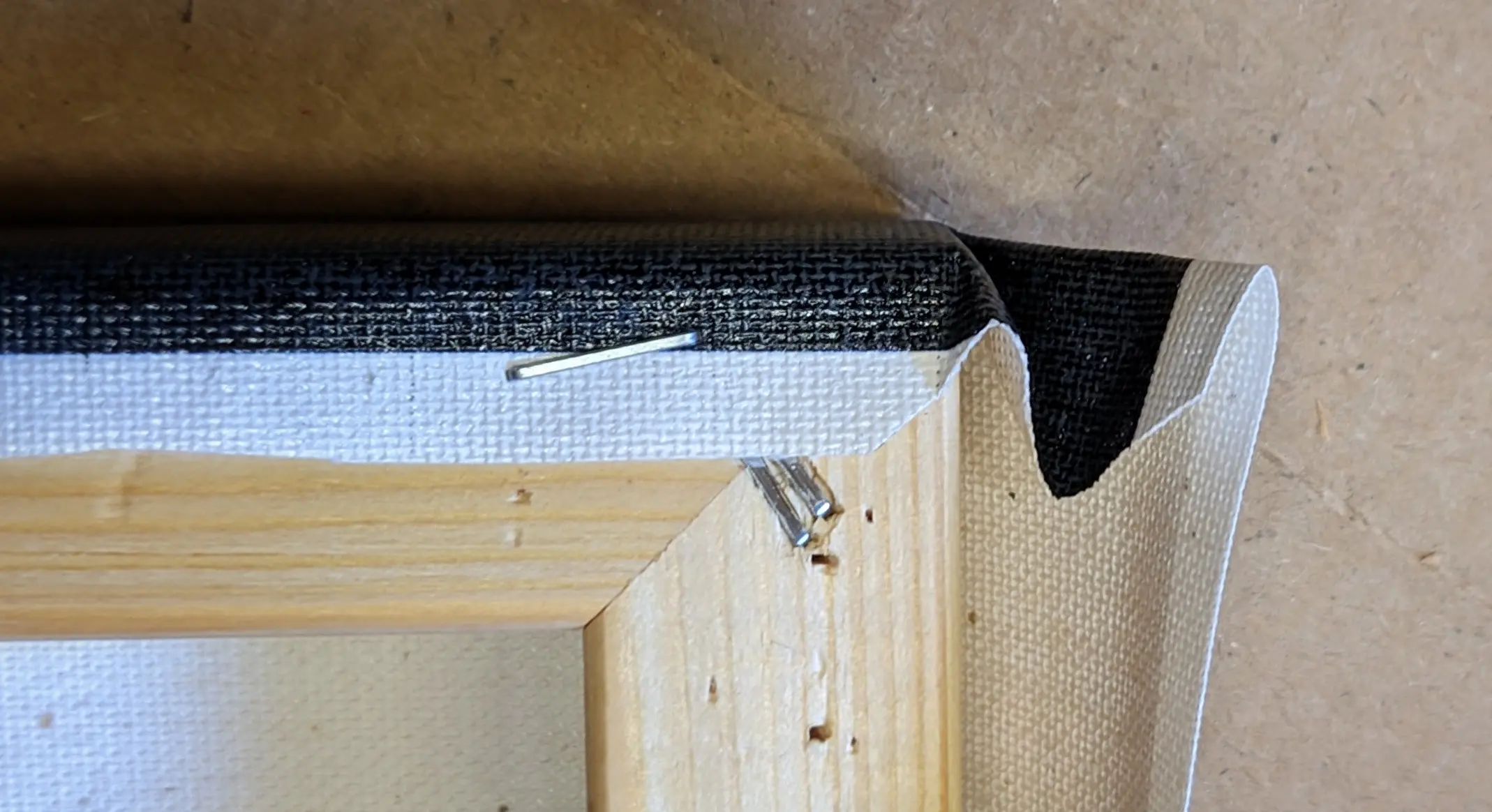
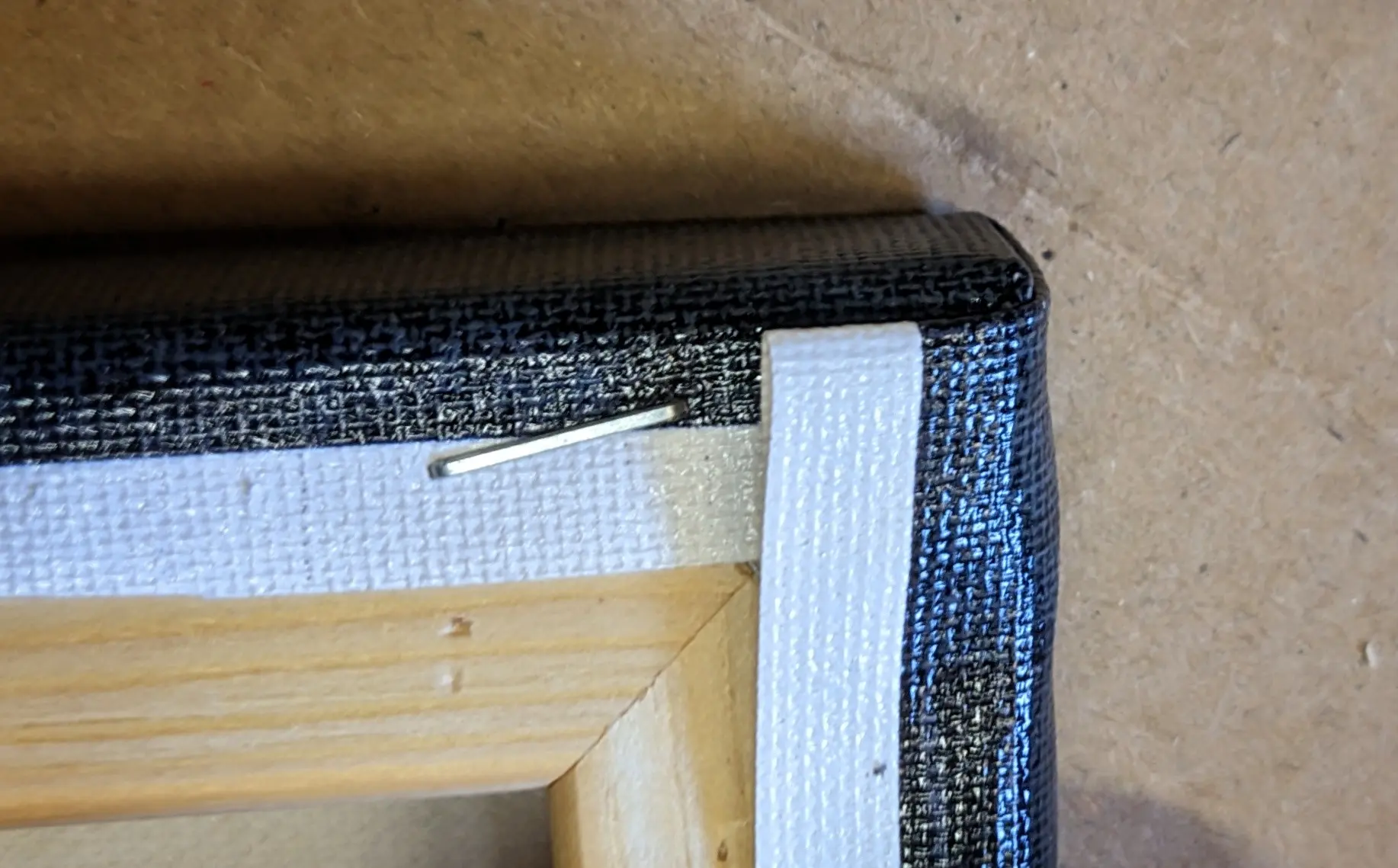
Lastly, repeat the same process for all four corners, and you are done.
Results
And that’s it, your first, entirely hand-wrapped canvas.
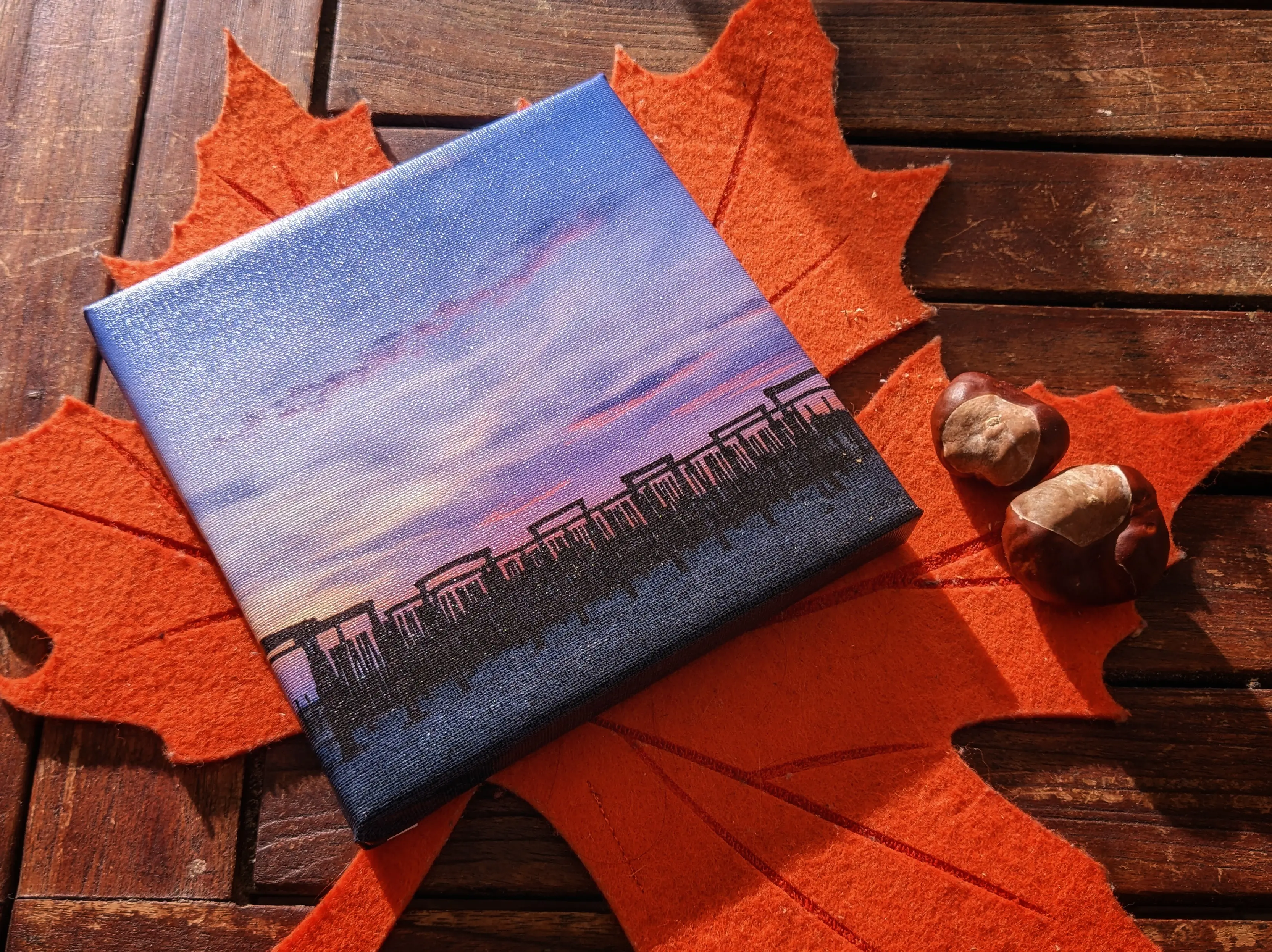
As you would probably expect, this is by far the best result in terms of quality:
the canvas pattern looks amazing and after dialing in the print settings, you can also achieve pretty decent color representation.
You will, however, notice that the image might appear a little bit blurry up close.
Which brings me to print settings and compatibility.
Finding canvas sheets that are compatible can be quite challenging,
and getting the print settings just right can take time as well.
Depending on how the canvas sheet is primed, it might do a better or worse job at absorbing the ink,
which makes it harder to achieve consistent results between suppliers.
Too little ink absorption can lead to blurry pictures, as the ink smears,
but you have to print on the sheet to actually find out how it behaves.
Printing on unknown materials might also damage your printer, something that you’ll have to consider for yourself.
For me, the results speak for themselves: the pattern, the colors, and especially the consistency of the artwork, without any missing areas, are all worth the risk to my printer and the struggle to test new suppliers.
This time I can truly say: It’s Canvas.